My Electronic Garden in Obsidian
I’ve been collecting houseplants for a while now, and at some point the mental overhead of remembering which plant needs water, which one got repotted last week, and where I put the new orchid became too much. I’m already building Jasmine, a plant management plugin for Maroid, but that’s still a work in progress. I needed something now.
So I turned to Obsidian. It started as a simple “one note per plant” thing and gradually grew into a proper plant database with automated entries, maintenance tracking, photo galleries, and dashboards that tell me which plants I’ve been neglecting.
Here’s how the whole thing works.
Vault Structure#
The vault is called Garden. The layout is pretty straightforward:
Garden/
├── Plants/              # One note per plant (P001.md, P002.md, ...)
├── Photos/              # Organized by plant ID (Photos/P001/, Photos/P002/, ...)
├── _templates/          # Note templates
├── _quickadd/           # QuickAdd macro scripts and config
│   ├── scripts/
│   └── config.json
├── Plant Dashboard.md
├── Photo Gallery.md
├── Maintenance Archive.md
└── Stats Dashboard.md
Every plant gets a unique ID (P001, P002, etc.), its own note under Plants/, and a dedicated photo folder under Photos/. The naming is deliberate: IDs are zero-padded so they sort correctly, and photos use the format YYYY-MM-DD_description.jpg for chronological ordering.
Plant Notes and the Template#
Each plant note follows the same structure. Here’s what the Monstera looks like:
---
id: P003
common_name: Monstera
scientific_name: Monstera deliciosa
location: Office
acquired_date: 2026-02-15
status: active
watering_frequency: weekly
light: indirect
parent:
tags:
  - plant
created: 2026-02-15
---

# Monstera (P003)

## Photos

```img-gallery
path: Photos/P003
type: horizontal
height: 200
radius: 6
sortby: name
sort: desc
```

## Watering & Maintenance Log

- (log_date:: 2026-03-14) | (log_type:: watering)
- (log_date:: 2026-02-21) | (log_type:: repotting) | Fresh soil, better drainage

## Seasonal Care

- **Spring/Summer**: Bright indirect light, weekly watering, monthly feeding, wipe leaves
- **Fall/Winter**: Reduce watering, stop fertilizing, avoid cold drafts
A few things worth noting here:
- The frontmatter holds all the structured data that Dataview can query: species, location, care schedule, light requirements. There’s also a
parentfield for when you propagate a plant and want to link the child back to the original. - The Photos section uses the Image Gallery plugin to render a masonry grid directly from the plant’s photo folder. Drop a photo in, it shows up automatically.
- The Maintenance Log uses Dataview inline fields instead of markdown tables. I’ll explain why in a moment.
- Seasonal Care is just a quick reference so I don’t have to Google “how often do I water a Monstera in winter” every year.
The template that generates these notes lives in _templates/Plant.md and uses QuickAdd variables:
---
id: "{{VALUE:plantID}}"
common_name: "{{VALUE:name}}"
scientific_name: "{{VALUE:scientificName}}"
location: "{{VALUE:location}}"
acquired_date: "{{VALUE:acquiredDate}}"
status: active
watering_frequency: ""
light: ""
parent:
tags: [plant]
created: "{{DATE:YYYY-MM-DD}}"
---

# {{VALUE:name}} ({{VALUE:plantID}})

## Photos

```img-gallery
path: Photos/{{VALUE:plantID}}
type: horizontal
height: 200
radius: 6
sortby: name
sort: desc
```

## Watering & Maintenance Log

## Seasonal Care

- **Spring/Summer**:
- **Fall/Winter**:
The watering_frequency and light fields are left empty on creation since I usually fill those in after doing a bit of research on the species.
QuickAdd: One-Click Plant Creation#
Adding a new plant is a single button press, thanks to QuickAdd. I wrote a macro that handles the boring parts automatically:
module.exports = async (params) => {
  const { app, quickAddApi, variables } = params;

  const config = await loadConfig(app);
  const plantID = await getNextPlantID(app);

  await quickAddApi.requestInputs([
    {
      id: "name",
      label: "Common Name",
      type: "text",
      placeholder: "e.g., Rose",
    },
    {
      id: "scientificName",
      label: "Scientific Name",
      type: "text",
    },
    {
      id: "acquiredDate",
      label: "Acquired Date",
      type: "date",
      dateFormat: "YYYY-MM-DD",
      defaultValue: quickAddApi.date.now("YYYY-MM-DD"),
    },
    {
      id: "location",
      label: "Location",
      type: "dropdown",
      options: config.locations ?? [],
    },
  ]);

  variables.plantID = plantID;

  // Create photo folder for the new plant
  const photoFolder = `Photos/${plantID}`;
  if (!app.vault.getAbstractFileByPath(photoFolder)) {
    await app.vault.createFolder(photoFolder);
  }
};
The getNextPlantID function scans all files in Plants/, finds the highest number, and increments it. So the IDs are always sequential: P001, P002, P003, and so on.
The location dropdown pulls from a config file, so adding a new room is a one-line JSON edit:
{
  "locations": ["Office", "Living Room"]
}
Hit the button, fill in four fields, and you’ve got a fully structured plant note with its own photo folder ready to go.
Maintenance Logging#
This is where the inline fields come in. My first approach was a markdown table for each plant’s maintenance log. That looked nice, but Dataview can’t query across markdown tables in different notes. I needed to be able to ask “show me everything I watered in the last 30 days” across all my plants.
The solution is Dataview’s inline field syntax:
- (log_date:: 2026-03-14) | (log_type:: watering)
- (log_date:: 2026-03-11) | (log_type:: repotting) | Repotted to new soil with better drainage
It doesn’t look as pretty as a table, but it’s queryable. On the dashboard, a single Dataview block pulls recent activity from every plant:
TABLE WITHOUT ID
  file.link AS "Plant",
  common_name AS "Name",
  log_date AS "Date",
  log_type AS "Type"
FROM "Plants"
FLATTEN file.lists AS item
WHERE item.log_date AND item.log_date >= date(today) - dur(30 days)
FLATTEN item.log_date AS log_date
FLATTEN item.log_type AS log_type
SORT log_date DESC
The full history is offloaded to a Maintenance Archive note so the main dashboard stays focused on what’s recent.
Photo Gallery#
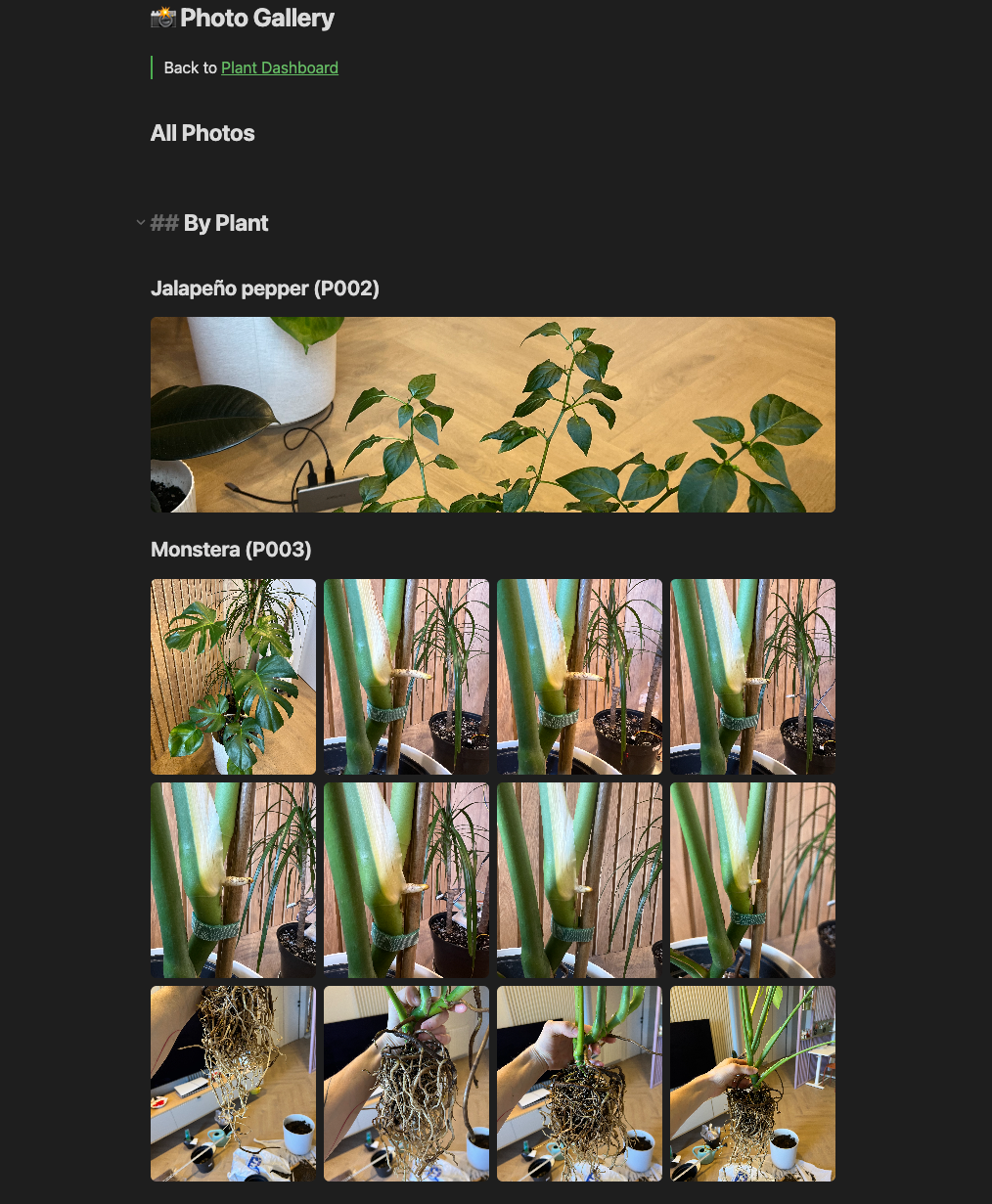
I take a lot of plant photos (mostly to track growth, sometimes just because they look nice). Each plant has its own folder under Photos/, and the Image Gallery plugin takes care of rendering.
On individual plant notes, it’s a simple code block pointing to the folder. On the Photo Gallery dashboard, I use DataviewJS to loop through all active plants and render a gallery per plant dynamically:
for (const plant of plants) {
  const folder = `Photos/${plant.id}`;

  dv.header(3, `${plant.common_name} (${plant.id})`);
  dv.span(`\`\`\`img-gallery
path: ${folder}
type: horizontal
height: 200
\`\`\``);
}
This way, adding a new plant automatically adds it to the gallery. No manual updates needed.
A note on iPhone photos: Obsidian can’t render HEIC files. If you shoot in HEIC (the iPhone default), you’ll need to convert them. I keep a small shell script that uses macOS’s built-in
sipsto batch-convert everything:find "$PHOTOS" -iname "*.heic" | while read -r heic; do jpg="${heic%.*}.jpg" sips -s format jpeg "$heic" --out "$jpg" > /dev/null 2>&1 && rm "$heic" done
The Dashboard#
The Plant Dashboard is where I spend most of my time. It’s the home screen for the whole system.
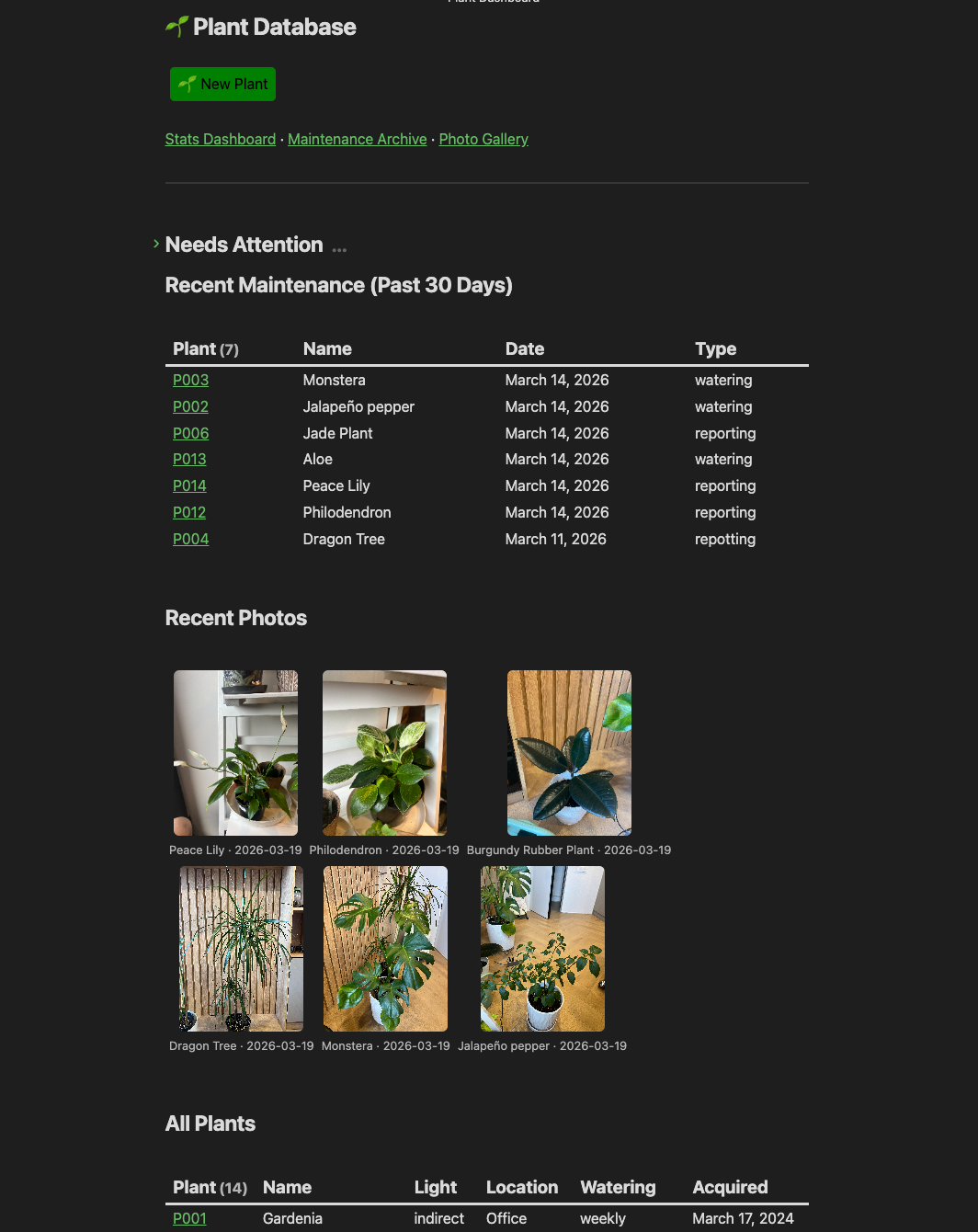
At the top, there’s a “New Plant” button (triggers the QuickAdd macro) and links to the other dashboards. Here’s a simplified version of what the dashboard looks like in markdown:
# 🌱 Plant Database

```button
name 🌱 New Plant
type command
action QuickAdd: New Plant
color green
```

[[Stats Dashboard]] · [[Maintenance Archive]] · [[Photo Gallery]]

---

## Needs Attention

```dataviewjs
// Compares last log date against watering_frequency for each plant
// 🔴 Overdue | 🟡 Due | ⚪ No logs | On schedule = hidden
```

## Recent Maintenance (Past 30 Days)

```dataview
TABLE WITHOUT ID
  file.link AS "Plant", common_name AS "Name",
  log_date AS "Date", log_type AS "Type"
FROM "Plants"
FLATTEN file.lists AS item
WHERE item.log_date AND item.log_date >= date(today) - dur(30 days)
FLATTEN item.log_date AS log_date
FLATTEN item.log_type AS log_type
SORT log_date DESC
```

## Recent Photos

```dataviewjs
// Shows the 6 most recent photos across all plants from the past 30 days
```

## All Plants

```dataview
TABLE WITHOUT ID
  file.link AS "Plant", common_name AS "Name", light AS "Light",
  location AS "Location", watering_frequency AS "Watering"
FROM "Plants"
WHERE status = "active"
SORT file.name ASC
```

## By Location

### Office

```dataview
TABLE WITHOUT ID
  file.link AS "Plant", common_name AS "Name", watering_frequency AS "Watering"
FROM "Plants"
WHERE location = "Office" AND status = "active"
SORT common_name ASC
```

### Living Room

```dataview
TABLE WITHOUT ID
  file.link AS "Plant", common_name AS "Name", watering_frequency AS "Watering"
FROM "Plants"
WHERE location = "Living Room" AND status = "active"
SORT common_name ASC
```

## By Light Needs

```dataview
LIST common_name
FROM "Plants"
WHERE light = "direct" AND status = "active"
```

## Recently Acquired

```dataview
TABLE WITHOUT ID
  file.link AS "Plant", common_name AS "Name", acquired_date AS "Acquired"
FROM "Plants"
WHERE status = "active"
SORT acquired_date DESC
LIMIT 5
```

## Stats

```dataview
LIST WITHOUT ID
  "Total plants: " + length(rows) +
  " | Office: " + length(filter(rows, (r) => r.location = "Office")) +
  " | Living Room: " + length(filter(rows, (r) => r.location = "Living Room"))
FROM "Plants"
WHERE status = "active"
GROUP BY true
```
The Needs Attention section is the most useful part. It compares each plant’s last maintenance log against its watering_frequency and flags anything overdue:
- 🔴 Overdue (more than 1.5x the expected interval)
- 🟡 Due (past the interval but not critical yet)
- ⚪ No logs recorded
Plants that are on schedule don’t show up at all. When everything is fine, you just see: ✅ All plants are on schedule!
The dashboard also has filtered views by location and light needs, and a Recent Photos section showing the latest photos across all plants.
Plugins#
The whole setup runs on four community plugins:
| Plugin | What it does |
|---|---|
| Dataview | All the queries, tables, and dynamic content |
| QuickAdd | One-click plant creation with auto-ID |
| Buttons | Action buttons on the dashboard |
| Image Gallery | Masonry photo grids |
Bonus: QR Code Stickers for Quick Access#
Once you have more than a dozen plants, finding the right note gets annoying. I wanted something physical: walk up to a plant, scan something, see its page.
The Sticker#
For each plant I generate a QR code that simply contains the plant ID (e.g., P004). I print it on a small sticker and attach it to the pot.
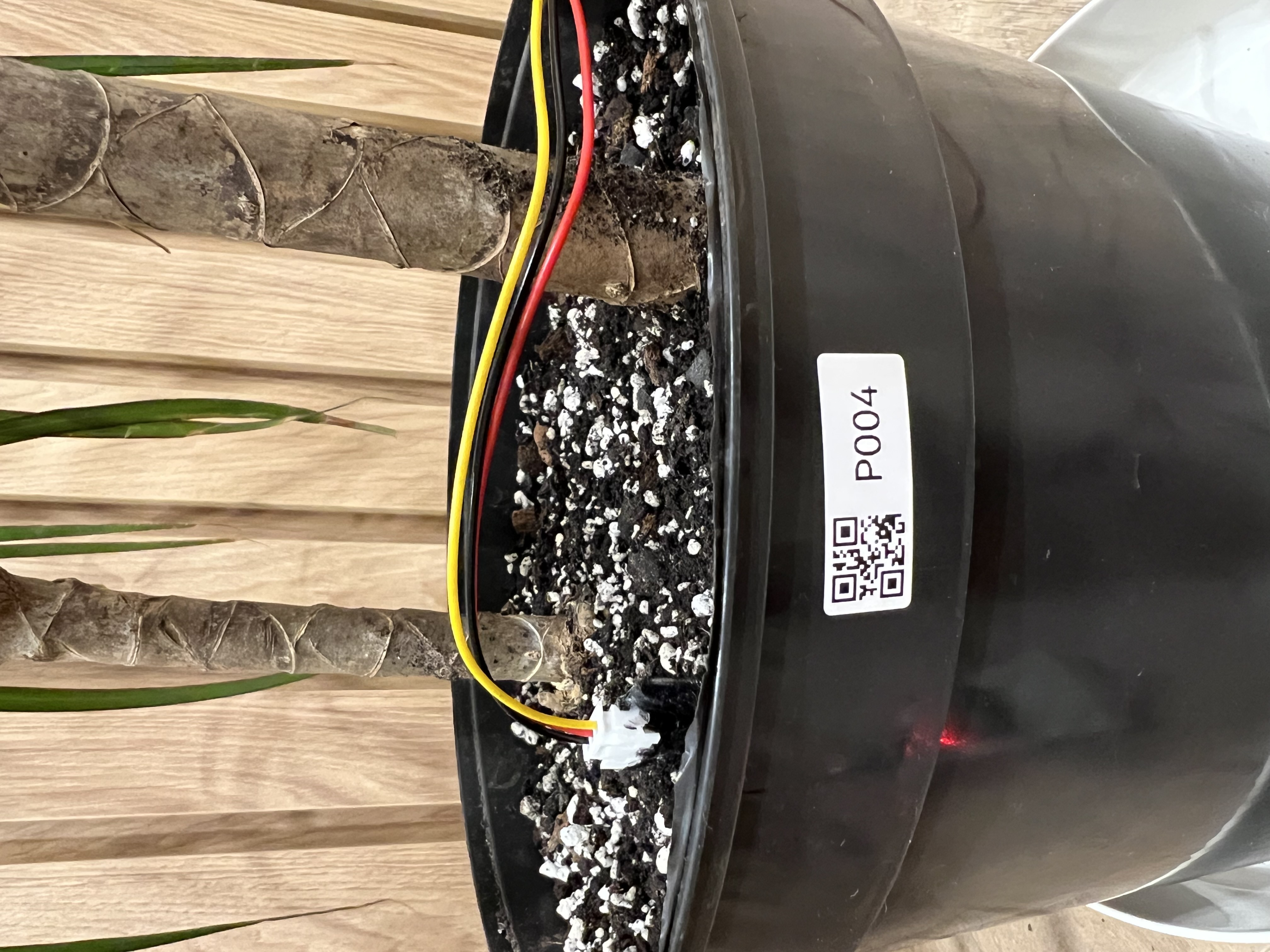
Those wires you see attached to the pot are from Jasmine, the plant management plugin I’m building for Maroid. That’s a soil moisture sensor. I’m working on collecting various metrics from my plants and their environments, so maybe I’ll write about that setup in a future post.
Any QR code generator works for this. I use a label printer, but printing on paper and taping it on works just as well.
The iOS Shortcut#
The shortcut is dead simple:
- Open the Shortcuts app on your iPhone
- Create a new shortcut with these actions:
- Scan QR code or barcode to read the plant ID
- Open URLs with the value
obsidian://open?vault=Garden&file=Plants/[QR/Barcode](insert the scan result variable)
- Name it “View Plant” and add it to your Home Screen
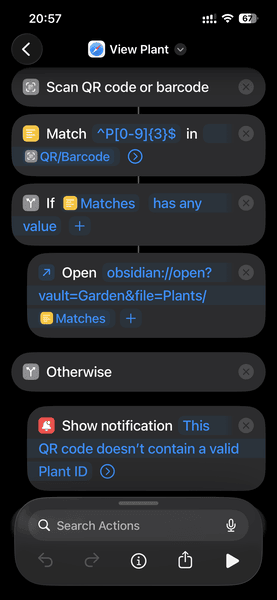
My actual shortcut is a bit more involved: it matches the scanned text with a regex. The simple two-step version above works just as well though.
That’s it. Scan the sticker, Obsidian opens the plant’s note with its full history, photos, and care info. No typing, no scrolling through the vault.
Final Thoughts#
This started as a “let me just make a note for each plant” idea and somehow ended up here: automated entries, photo timelines, overdue alerts, and QR code access from my phone.
The nice thing about building this in Obsidian is that everything is just markdown files. There’s no database to manage, no app that might shut down, no subscription. The data is mine and it syncs through iCloud.
If you’re managing any kind of collection, this pattern scales well. Plants, books, hardware inventory, recipes. The combination of Dataview for querying and QuickAdd for automation turns Obsidian into a surprisingly capable little database.
Happy gardening!